Document or paper: the import choice that breaks your links
By Baseline Paper · · 4 min read
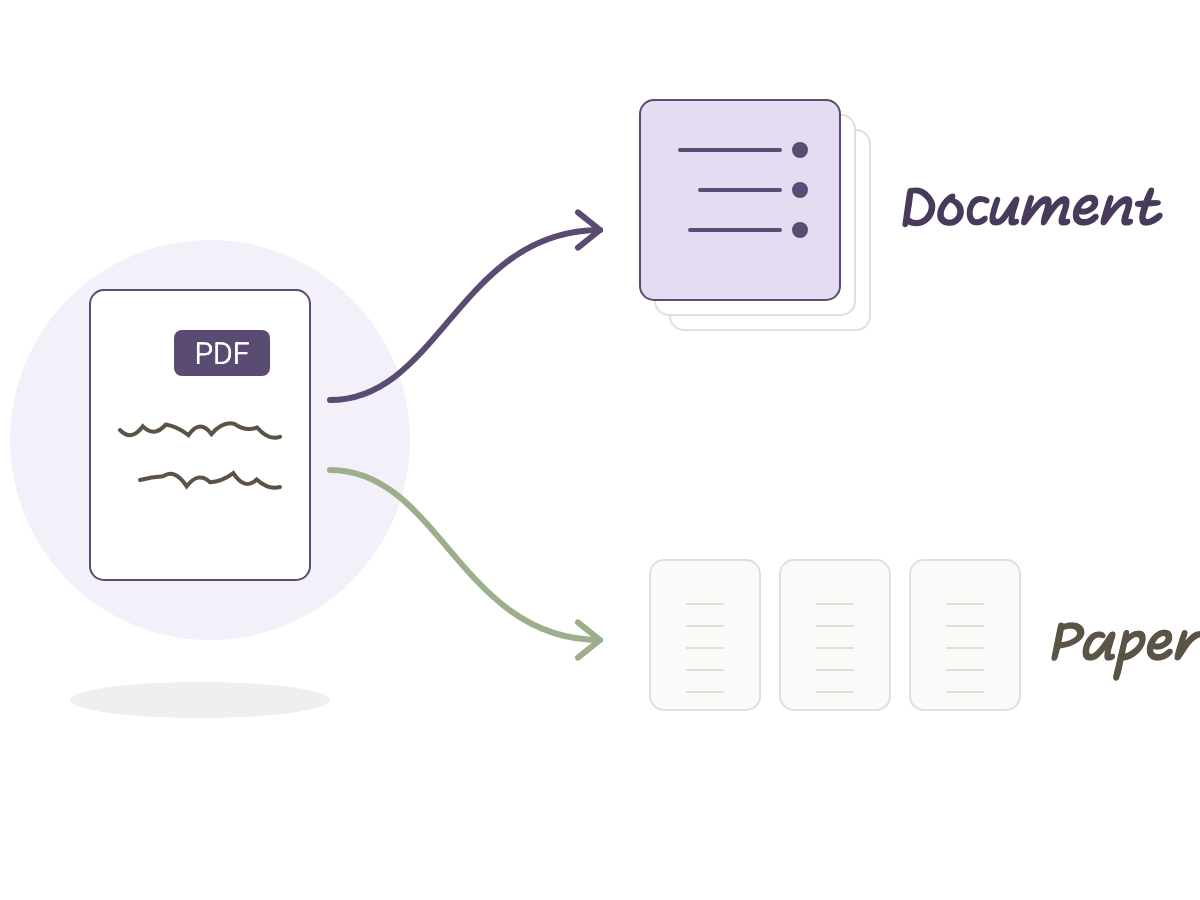
You import a PDF on your tablet, open it in Goodnotes, and right before the file loads, a small question pops up: document or paper. Most people click through it fast, and they do not always click the right one. That single choice is why an index link stops working, or why a plain lined page does not behave the way you expected.
The difference is not in the file, it is in what Goodnotes does with it after import. That choice decides whether you get one page that repeats itself, or a whole file that stays exactly as it was built.
Here is what each option actually does, and how to tell which one your file needs, without guessing every time.
What paper actually means
When you import as paper, Goodnotes does not keep the file as it is. It takes the design of the first page, the ruling or the grid drawn on it, and turns that into a background template. From there you can paste that template onto as many pages as you like inside a notebook you already have open.
That is exactly the situation for a plain lined page or a grid page. There is no index and no links, just a page design you want to repeat over and over.
What document actually means
Document is the opposite. Goodnotes keeps every page in the file exactly as it was, including every internal link: navigation buttons, index rows, page turn arrows. The file opens as a brand new notebook with every one of its pages, not just the first.
That is the right choice for anything with more than one page meant to talk to itself. If a row in an index jumps to page 42, that only happens when the file comes in as a document.
When to import as paper
Paper suits a single page template: a lined page, a grid page, a dot grid page. You import it as paper, then use it as a background for new pages inside your own personal notebook. That way you never rebuild a page from scratch every time you want another one in the same design.
This matters most when a notebook already exists and is already full. Say a personal notebook already has twenty lecture pages, and suddenly you need ten more ruled pages in the exact same design. You add a page, pick the template that was saved as paper, and it is done.
When to import as document
Document suits any product with real structure: a notebook with an index, a weekly planner with navigation, any file where tapping one row is supposed to carry you to a different page. A notebook with a linked index and numbered lesson pages is a good example: none of that works unless the file stays whole exactly as it was built.
The same rule holds in Notability and Noteshelf too. The name of the option in the import menu sometimes differs by a word, but the idea is the same: either the app keeps the file as it is with every link intact, or it pulls out only the page design.
What happens if you pick wrong
Import a notebook with an index as paper, and Goodnotes takes only the design of the first page; every other page and every link disappears. Import a single background page as a document, and you get a one page file with no easy way to paste it as a background onto more pages.
The fix is easy. Delete the file from the list and import it again, this time choosing the other option. It takes under a minute, and there is no need to download the file a second time.
How to check before you start
The simplest check happens right after import. Open the file, turn the pen off, and tap a row in the index or a navigation button. If the file jumped to a different page, it came in as a document and everything is fine. If nothing happened, it likely came in as paper, so go back and import it again.
How to make sure your notebook lands as a document
The Baseline Paper Cornell notebook is built from the ground up as a document: 105 pages in each of five color themes, a linked index up front, numbered lesson pages after it, with the keyword column on the right for right to left reading. Import it as a document, tap a row in the index, and you land straight on the lesson. That is the whole point: picking the right import option is what lets this notebook work the way it was actually built.