How to duplicate a notebook, one copy per course
By Baseline Paper · · 4 min read
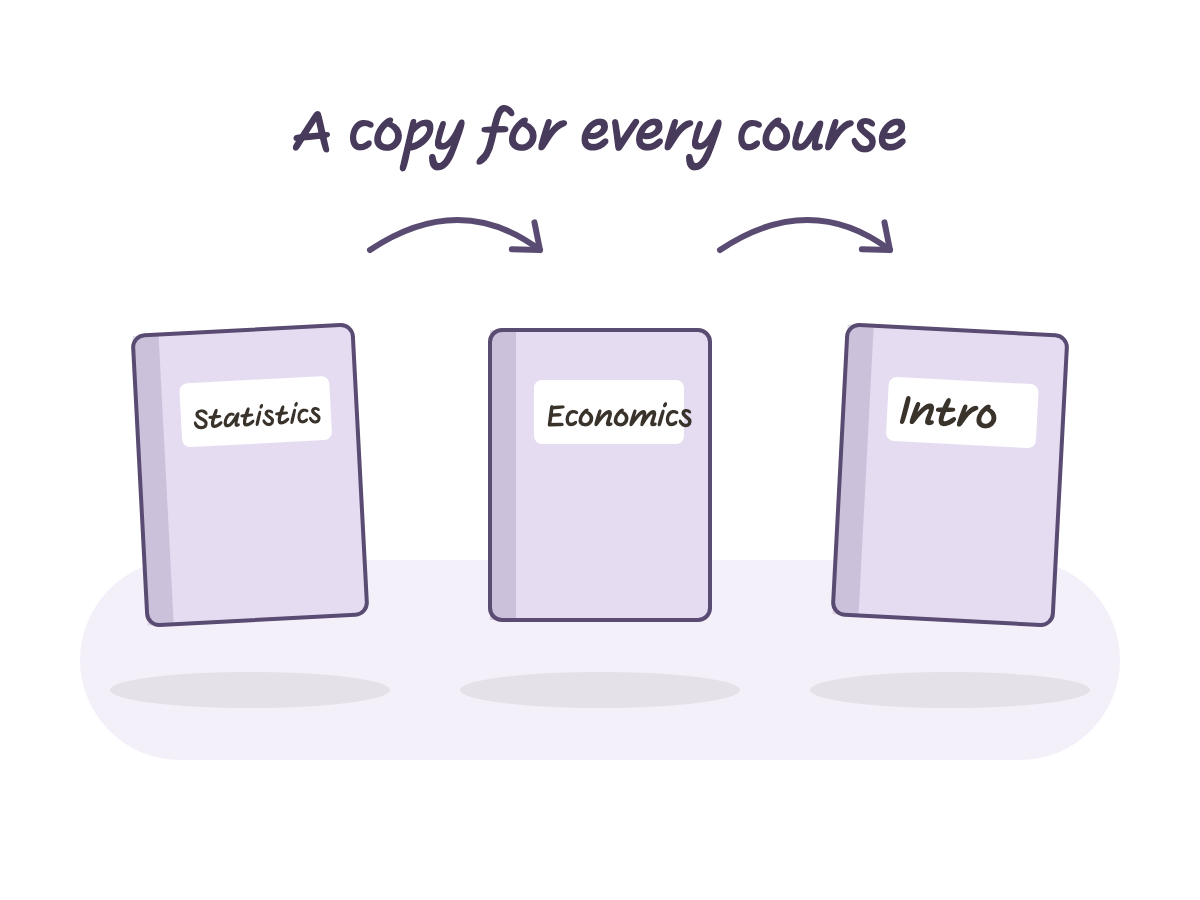
At the start of every semester the same question comes back: one notebook for every course, or a separate notebook for each. On paper that decision means a heavy bag and a mess. With a digital notebook it is not really a buying decision at all, it is a question of duplicating a file.
The same question comes back mid semester too, when one course turns out heavier than planned and a section runs out of pages halfway through. So how do you actually duplicate a notebook, and what do you do with the copy so it does not confuse you a week later.
The short answer covers two different moves: duplicating a whole file, and duplicating a single page inside it. One happens at the start of the semester, the other whenever the need shows up. Both take a few seconds, and both keep every link intact.
Duplicate the whole file, one copy per course
Open the folder holding the base notebook, long press the file, and choose duplicate from the menu that opens. A copy appears in a second, with the same eight tabs and the same index, just nothing written inside yet.
Do this once per course, at the start of the semester. Five courses, five copies, each one standing on its own. Nothing ties the notebooks together beyond the fact that they started from the same file.
This is a completely different habit than paper, where the decision falls every morning: which notebook to grab today, and what happens if you forget exactly the one you need for the exam. With one file duplicated once at the start of the semester, every course already lives on the iPad, and there is nothing left to choose in the morning.
What to set up in the copy before the first lecture
First rename the file to the course name, so you do not mix up several files with the same name. Then write the course name on the cover, and fill in the index: a name for each of the eight tabs, whether that is a unit, a chapter, or a topic in the course.
It takes two minutes, and it only needs doing once at the start of the semester. From there on you just write inside the tabs.
If you have many courses, it also helps to sort the files into folders inside the app: one folder per semester, holding all five files for that semester. At the end of the semester, close the folder and open a new one, without deleting anything.
Out of pages halfway through a section, now what
This happens almost every semester: one course turns out heavier than expected, and a section runs out of room halfway through. The fix is not to duplicate the whole file again. Long press the last page in that section and choose duplicate page.
The new page lands right after the original, and every link on it, the button back to the index and the tab on the side, keeps working exactly like it did on the original.
Why there are no printed page numbers
In a regular notebook, a duplicated page always causes trouble: the page number is already taken, and the next and previous buttons point to the wrong place. This notebook has no printed page numbers at all, and no next or previous buttons between pages. There is only a small circle in the header, for writing a number by hand if you want one.
That way, every page you duplicate, however many times, stays correct. Nothing can get confused, even after ten duplications.
Need a different kind of page, not just lines
Sometimes the middle of a history tab needs a table, not more lines. A math lecture needs a grid, not another page of empty lines. At the back of the notebook sits a template library with six page types: lined, squared grid, dot grid, blank, Cornell, and two column. Duplicate whichever type you need and move it into the relevant tab.
It is the exact same duplicate move as before, only this time it does not add another identical page, it adds a page of a different kind entirely. And that page, just like every other page in the notebook, has no printed number and no next or previous buttons.
Why this notebook is built for duplication from the start
All of this works because the Lined Tabbed Notebook was built from the ground up for duplication: 174 pages, eight tabs with navigation on the side of every page, a linked index, and a six page template library at the back. There are no printed page numbers and no next or previous buttons, exactly so that duplicating a file or a page never breaks a link. Five color themes, and it works in Goodnotes, Notability, Noteshelf, and any PDF annotation app with a stylus.