How to use navigation tabs in a PDF notebook
By Baseline Paper · · 4 min read
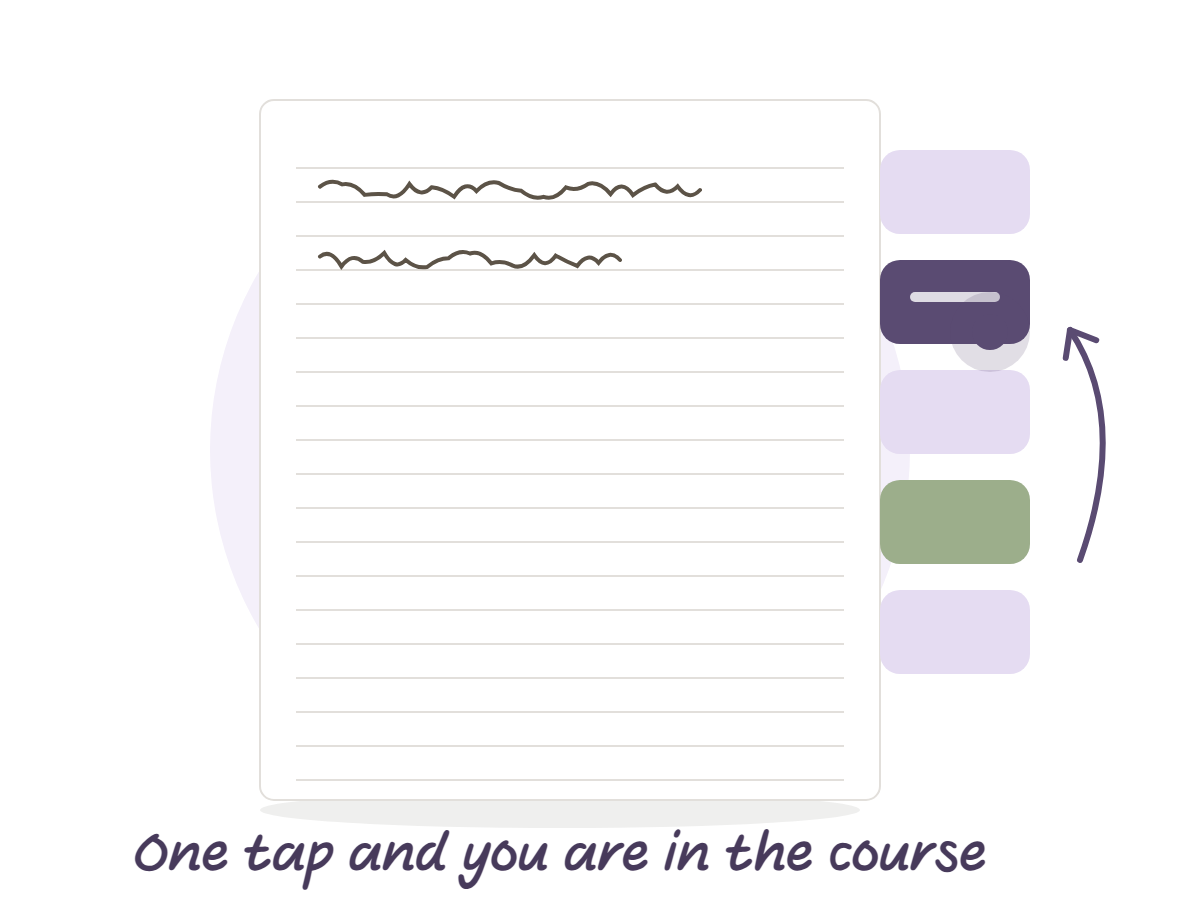
A paper notebook has dividers. A coloured plastic edge sticks out, and you see at once where each subject starts. A PDF page has no edge to grab, so a digital notebook with tabs has to carry its dividers inside the file.
That is what navigation tabs do. A strip of tabs sits at the side of every page, and tapping one takes you straight to the start of that course. No scrolling, no searching.
The tabs are links, though, and a few small things decide whether they work. Here is the order.
Import it so the tabs work
The links survive only when you import the file as a document. Import it as paper and the pages become a background, so the tabs do nothing. It is the most common mistake, and almost always the reason behind “my tabs are dead”.
Goodnotes, Notability and Noteshelf follow the same rule. Open the PDF as a new document, not as a paper template.
Tap a tab
After the cover comes a linked index with a row for each section. On every other page the tabs sit on the right edge, because the notebook runs right to left. A tap on a tab jumps to the section’s opening page.
If nothing happens, the pen is probably active and trying to draw a dot. Tap with a finger, or switch to reading mode. After a couple of days of use it becomes automatic, and you stop thinking about it.
Give each tab a course
The notebook has eight sections, each with an opening page and nineteen writing pages. That is usually more than you have in a semester. So one course per section, plus one for everything that belongs to no course: exam dates, forms, lists.
Write the course name on the opening page and you are done. At the next lecture tap the course tab, land in its section and open the next free page. You do not need to remember where you stopped, you just continue from the last point in the section.
What to do when the pages run out
Used all nineteen pages of a course? Duplicate a writing page and you have another one. The tabs stay on it and keep working.
The pages are built for exactly this. There are no printed page numbers and no next and previous buttons. Only links to fixed destinations, so no insertion or deletion moves them. And clean template pages wait at the back: lines, squares, dots and more, for when you need a different page style in the middle of a course.
Get back to the index
At the bottom of every page there is an index button, with another next to it that returns you to the start of the section. In the middle of a summary and remembered an assignment in another course? Tap a different tab, then your own, and you are back.
Before an exam this is the most useful part. Open the course tab and go through it page after page, without flipping through half a notebook.
A tab does not respond, what to check
First, how you imported. If it was as paper, import again as a document. Then check that the pen is not active, and that you are tapping the tab itself and not the text beside it.
If it still does not work, close the app and open the file again. Sometimes that is all it takes, and if not, try importing it again from the original file.
Set the tabs up before the semester
It is worth half an hour at the start of the semester, once. Import as a document, write the course names on the opening pages, and pick a colour theme that is pleasant to look at for several hours a day.
Then go through the tabs and tap each one, just to check it leads to the right course. You do not need to do it again. If you want a clean start next semester, duplicate the original file and begin again, and the old summaries stay in their own notebook.
When tabs are not needed
With two courses and twenty pages, tabs will not change much for you. They help once the notebook grows: four or five courses and dozens of pages each.
A digital notebook with navigation tabs, like the lined notebook with dividers from Baseline Paper, comes with a tab strip on every page, a linked index and template pages at the back. It has several colour themes to choose from, and every link is already connected. You import it as a document and start writing.