How to import a notebook PDF without losing its links
By Baseline Paper · · 4 min read
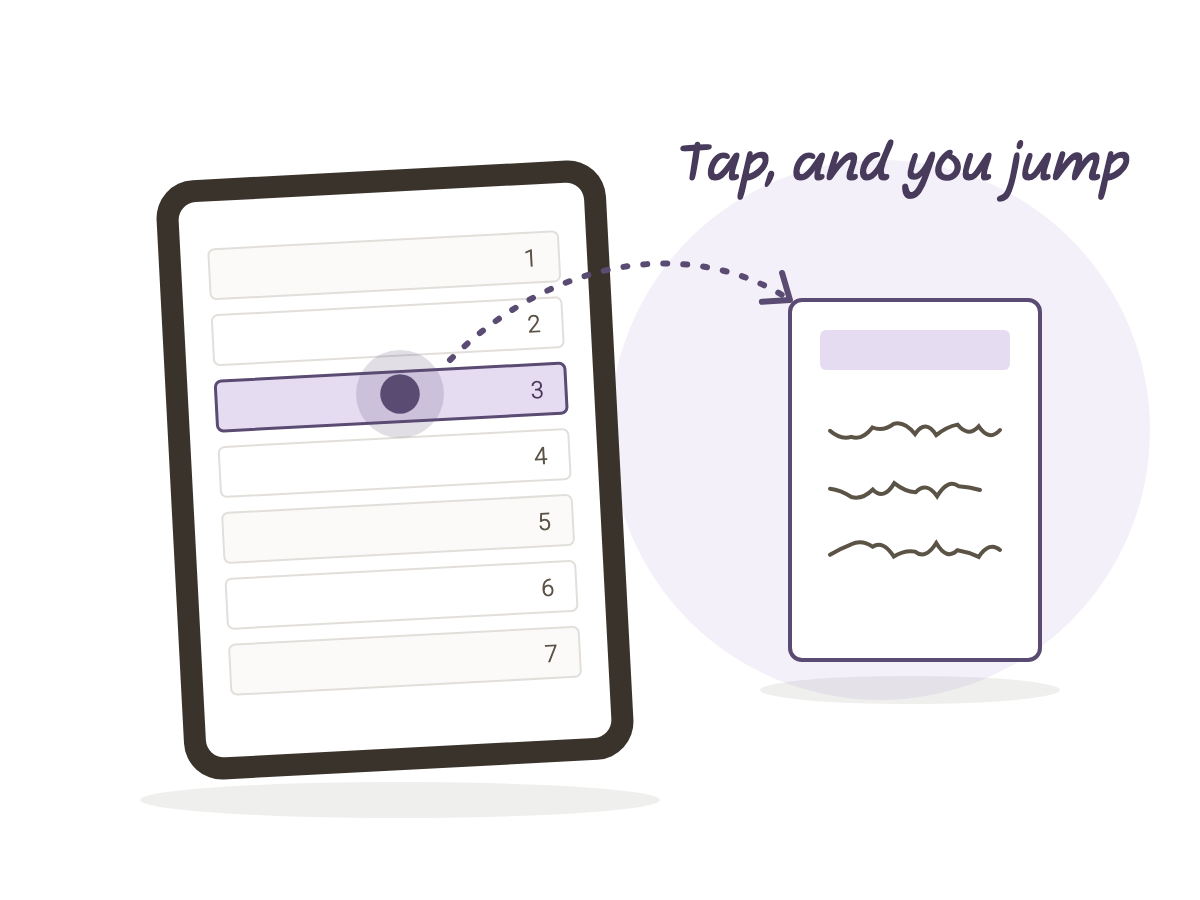
You bought a digital notebook on Etsy, opened it on the iPad, tapped a row in the index, and nothing happened. The page stayed put. It is the question we get most, and the file is almost never the problem.
There are two ways to import a PDF into Goodnotes, and only one of them keeps the links. There is also a second, even simpler situation where links simply ignore your taps. Here are both, plus a few things worth doing the first time you open the notebook.
Import it as a document, not as paper
When you import a PDF into Goodnotes, the app asks what it is: a document or paper. Paper is a template for a blank page, like a lined or grid sheet. Goodnotes keeps only the drawing of the page and drops every link.
A notebook with an index and navigation tabs is a document. Import it as a document and the links stay exactly as they are in the PDF. If you already imported it as paper, there is nothing to repair. Delete the paper from the list and import again, this time as a document. It takes half a minute.
The easiest route is to download the file on the iPad itself. Open the order on Etsy in the browser, tap download, and the file lands in the Files app. From there, tap the file, share, open in Goodnotes, and choose document. You can also start inside Goodnotes: tap plus, import, and find the file in Files. If you downloaded on a computer, move it over with AirDrop or a cloud folder and do the same.
Link not responding? Check the pen
This is the second case, and it catches a lot of people. In Goodnotes, links only work in reading mode. With the pen on, tapping a row in the index just draws a small dot on it.
Tap the pen icon in the toolbar to leave writing mode, then tap the link. People who do this every day switch modes constantly: write, hop out for a second to jump through the index, hop back in. After one day it is automatic.
How the index works
The index in the Cornell notebook has 100 rows, one per lesson. Write the date and topic in a row when the lesson starts, not at the end of the semester. The row itself is a link: tap it and you land on that lesson’s page.
Every lesson page has an index button at the bottom centre and page arrows in the direction a Hebrew book turns. Previous on the right, next on the left. No scrolling, and no page numbers to remember.
Adding a page when a lesson runs long
A three hour lecture does not fit on one page, and you should not have to jump to the next lesson because of it. In the page view, long press the page, choose Copy, and paste it right after. The continuation page sits after the original, and the index keeps pointing at the start of the lesson.
One copy per course
You do not run five courses in one notebook. Duplicate the notebook inside Goodnotes, long press the notebook and choose Duplicate, name the copy after the course, and that is it. Each copy gets its own index and its own 100 pages. The licence is written for exactly this: one notebook per course, as many courses as you like.
What to do with five colour themes
The download comes as five files: colourful, beige, dark, pastel and sage. Each one is the same notebook, 105 pages, in a different colour. Do not import all of them. Pick one, import it, and leave the rest in Files for the day you feel like a change.
Why the cue column sits on the right
The Baseline Paper Cornell notebook is built for Hebrew from the ground up: the keyword column on the right, where the eye starts, a roomy writing area in the middle, and a summary strip at the bottom. A method page comes first, then a linked index of 100 rows, then 100 numbered lesson pages. Import it as a document, turn the pen off, and tap the first row.