How to back up your digital notebooks before you need them
By Baseline Paper · · 3 min read
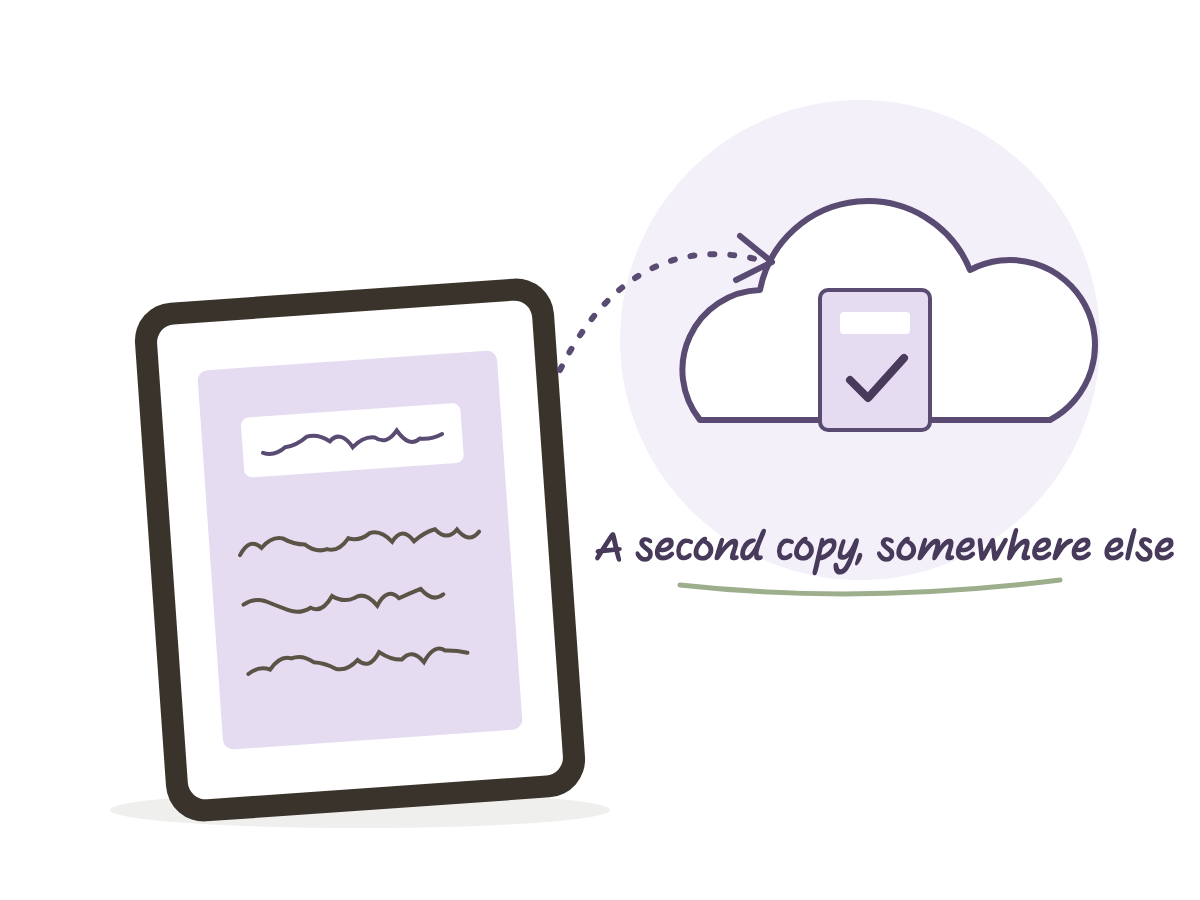
Something always breaks right before an exam. The tablet freezes, storage runs out mid update, or the device gets stolen out of a bag. Then you find out every summary from the semester lived in exactly one place: that screen.
A backup in Goodnotes does not happen automatically just because the device is connected to the cloud. There is a real difference between a file sitting on your tablet and an actual copy sitting somewhere else, and most students find out about that difference at the worst possible moment.
The good news: it takes a few minutes to set up, and after that it runs quietly in the background.
Why this always happens during exam week
Device failures do not pick a convenient time. A dead battery, a system update that stalls, storage that runs out right when you try to open one more notebook. It is not bad luck, it is simple statistics: the more you rely on a digital notebook, the higher the odds something goes wrong exactly when you are using it the most, which is right before a test.
What is actually at risk
A notebook in Goodnotes or Notability is stored on the tablet first. There is sync to the cloud, but sync is not a backup. If a file gets deleted or corrupted on the device, sometimes that deletion syncs too. A real backup is a separate copy, in PDF form, sitting somewhere that does not depend on that one device at all.
How to turn on automatic backup in Goodnotes
In the app settings there is a backup option. Pick iCloud Drive, Google Drive or Dropbox, and from that point on Goodnotes saves a PDF copy of every notebook into the folder you chose, without you having to remember to do it. Turn it on once, and stop thinking about it.
What Notability does instead
Notability keeps files in your account and syncs them in real time across devices. But that is still one app’s account, not an independent copy of your own. It is still worth exporting a PDF now and then and saving it somewhere else, so the copy does not depend on a single account.
A manual backup that takes two minutes
Open the notebook, choose share, then export as PDF. Save the file in the Files app, or move it into a cloud folder. Do this once a week, and before every exam without exception. Two minutes, against a whole evening of trying to remember what you wrote from memory.
Where to keep the file, not just on the same tablet
A copy sitting in the downloads folder on the same device is not really a backup, it is just another file in the same place. Keep at least one copy in the cloud and one copy on a computer or another device. With two places, one failure does not wipe out an entire semester.
One tidy notebook makes it easy to know what to back up
When there is one notebook per subject, with a clear name on the cover and a linked index inside, it is easy to know exactly which files matter and to make sure they are backed up. A Hebrew digital school notebook is built for exactly this: a cover with a subject and name field, a hundred row lesson index, and the same notebook duplicated once per course. When every course is one clear file, backing it up becomes a simple checklist instead of a guess.